Rooms & Racks: add locations and categories, see every location, and assign devices that aren't in a room yet.
Rooms & Racks is about where your equipment physically is: which room, and, for equipment in a rack, which slot.
The Rooms tab
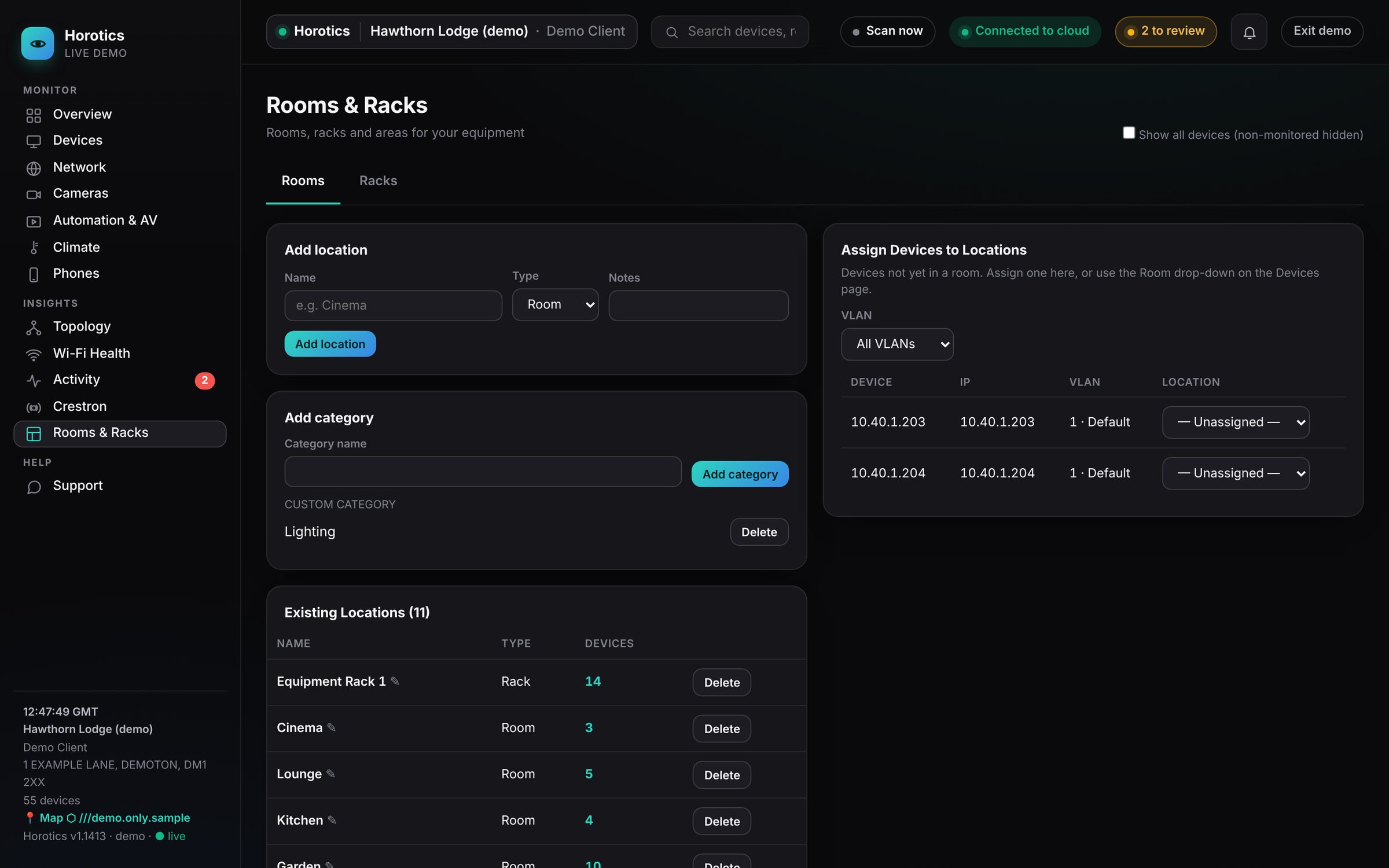
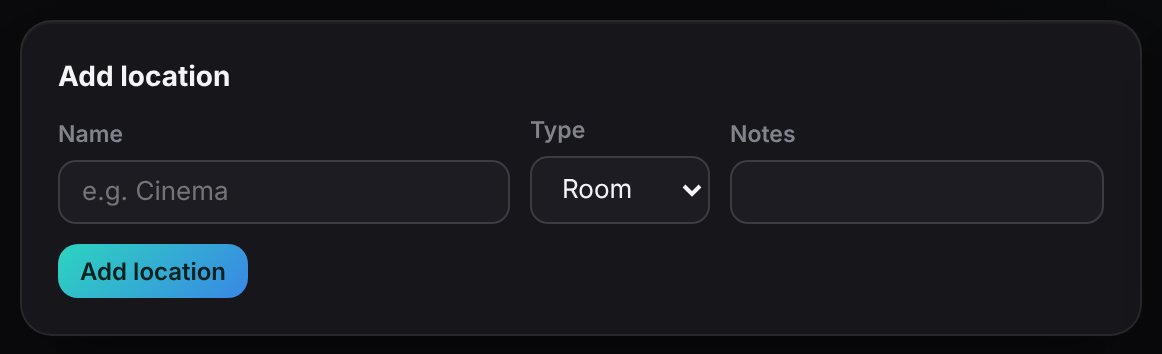
Add location.
Add location
Give it a name (for example "Plant room"), choose a type (Room, Rack, Area or Site), add notes if you like, and press Add location.
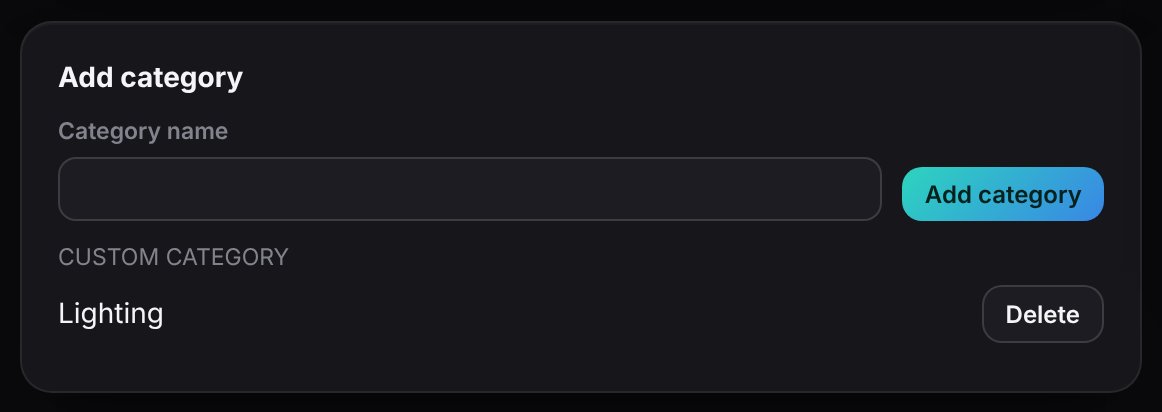
Add category, with any you've created listed below.
Add category
Create your own grouping, such as "Lighting". Ones you've added are listed with a Delete button.
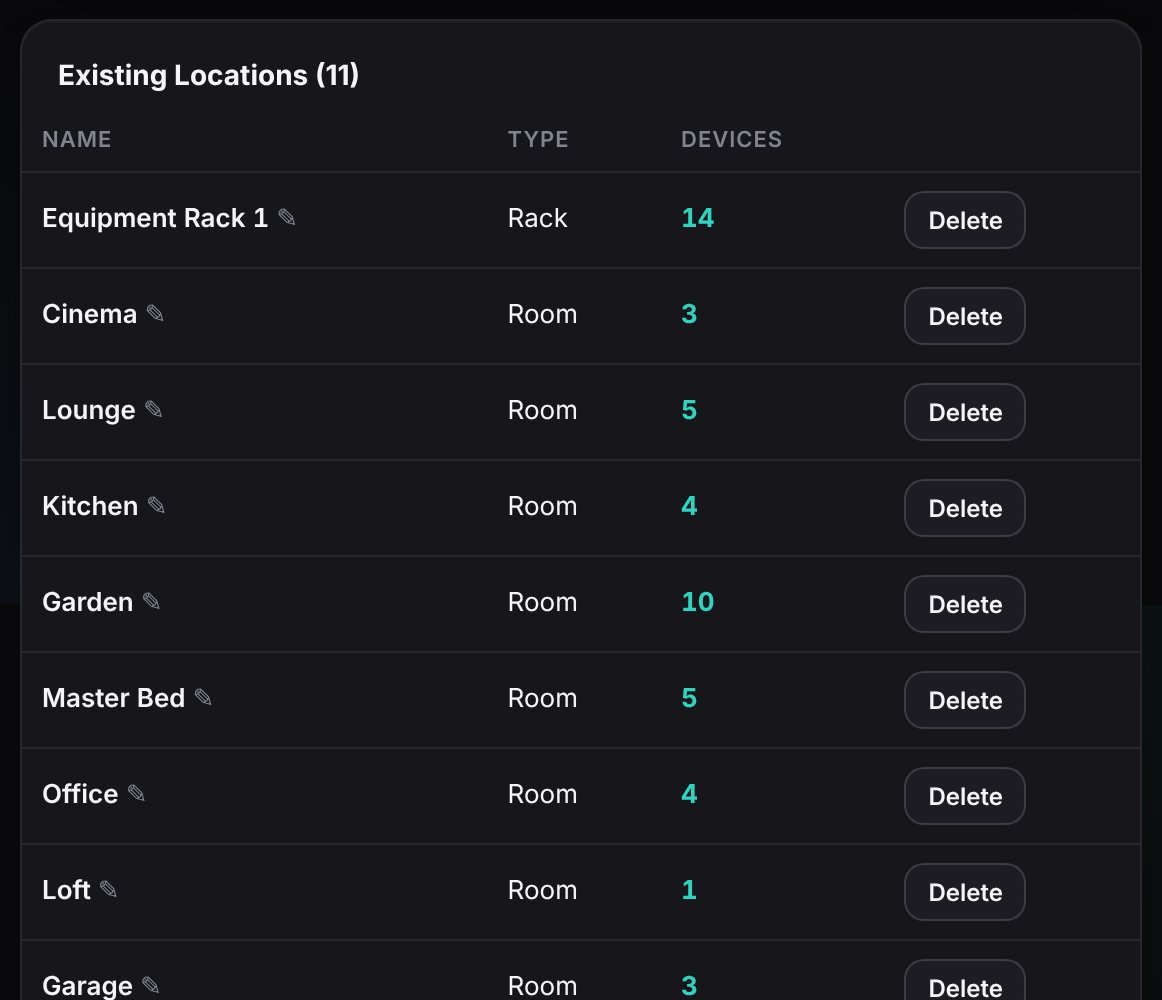
Existing locations: type, number of devices, rename and delete.
Existing locations
Every location with its type and how many devices are in it. Click ✎ to rename one, or Delete to remove it.
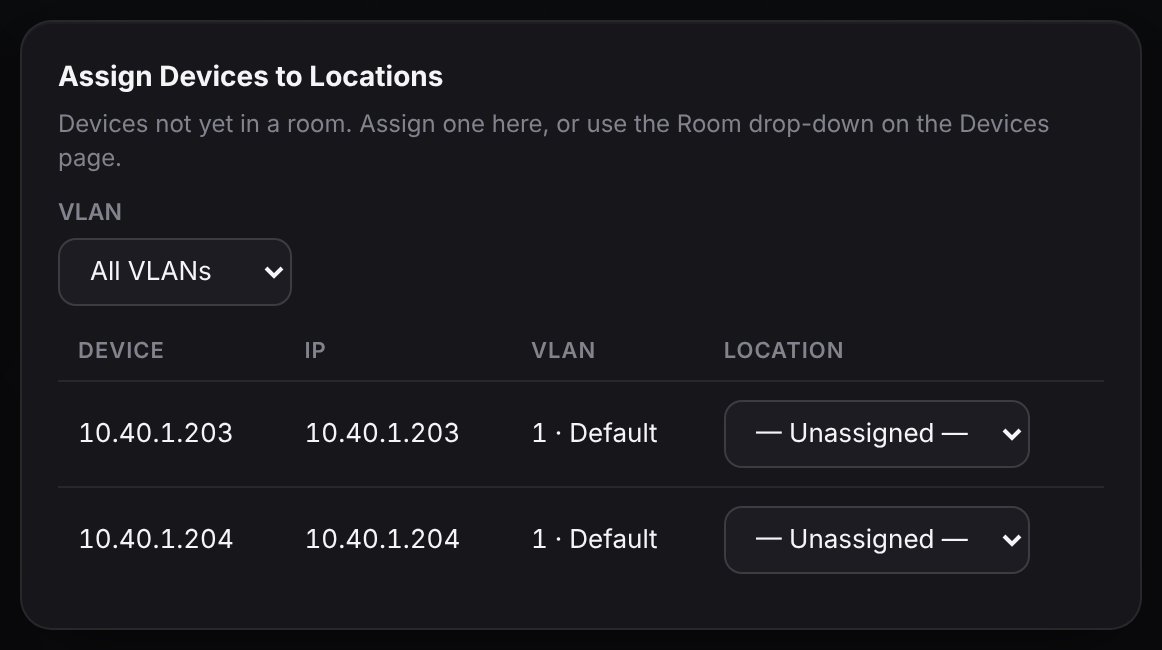
Devices not yet in a room, each with a drop-down to assign it.
Assign devices to locations
Devices that aren't in a room yet. Pick a room from the drop-down and it's done. You can also set a device's room from the Devices page.
A tick box at the top shows all devices, including non-monitored ones, which are hidden by default.
The Racks tab
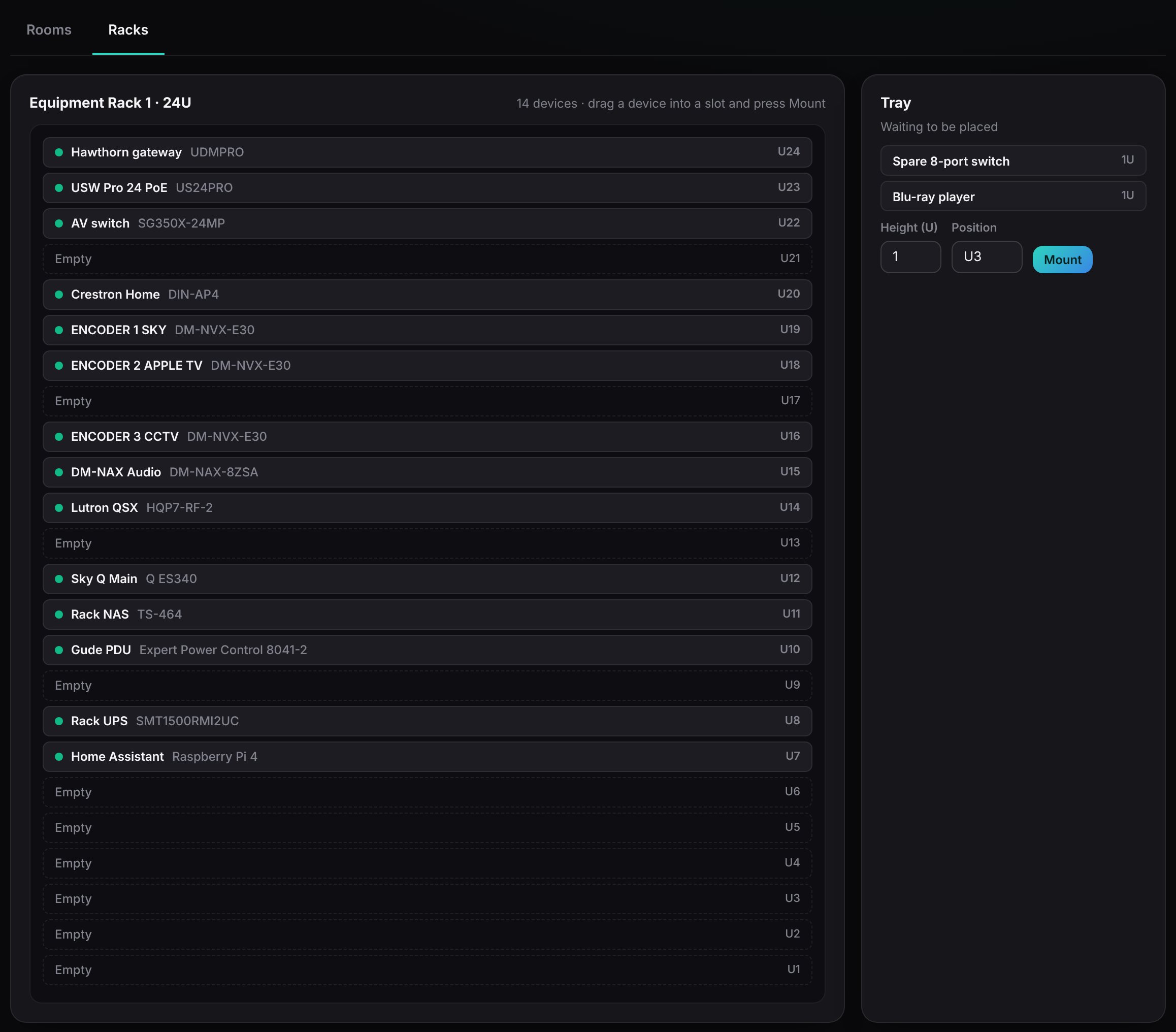
The Racks tab: a 24U rack with each device in its slot, empty slots marked, and the Tray on the right.
For equipment in a rack: a picture of the rack with each unit in its real slot, top (U24) to bottom (U1), just like looking at the real thing.
The rack
The rack's name and size (for example Equipment Rack 1 · 24U) and how many devices are in it. Each slot shows the device's name and model, with a dot: green when it's online, red when it's down. Empty slots are free space.
The Tray
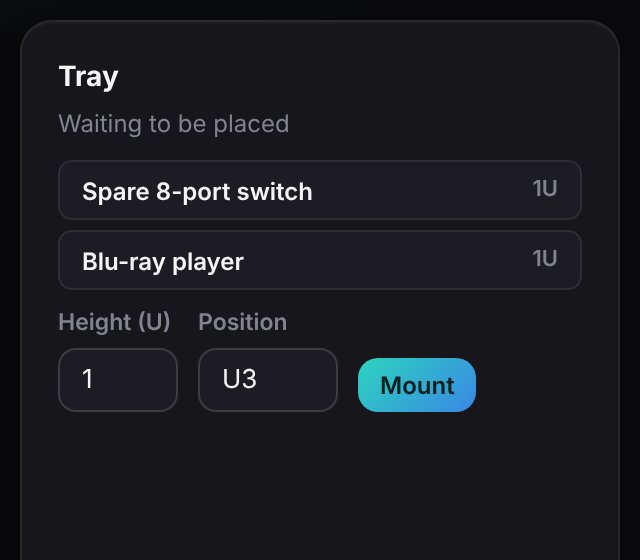
Devices that belong in the rack but haven't been given a slot yet.
The Tray: devices waiting to be placed, with Height, Position and Mount.
Putting a device in the rack
Set the device's room to the rack, on the Rooms tab or from the Devices list. It appears in the Tray.
Drag it from the Tray onto the slot it's in, or type its Height (how many units tall it is, such as 1 or 2) and Position (the bottom slot it sits in, such as U3).
Press Mount. It now shows in that slot.
To move a device, drag it to its new slot. Each rack you've added as a location gets its own picture here.
It's the quickest way to answer "where is that thing?".
Still stuck? Your installer can see the same screens as you and can sort most things remotely. You can also email support@horotics.com.