Wi-Fi Health
Is your Wi-Fi actually working well? See it in the live demo →
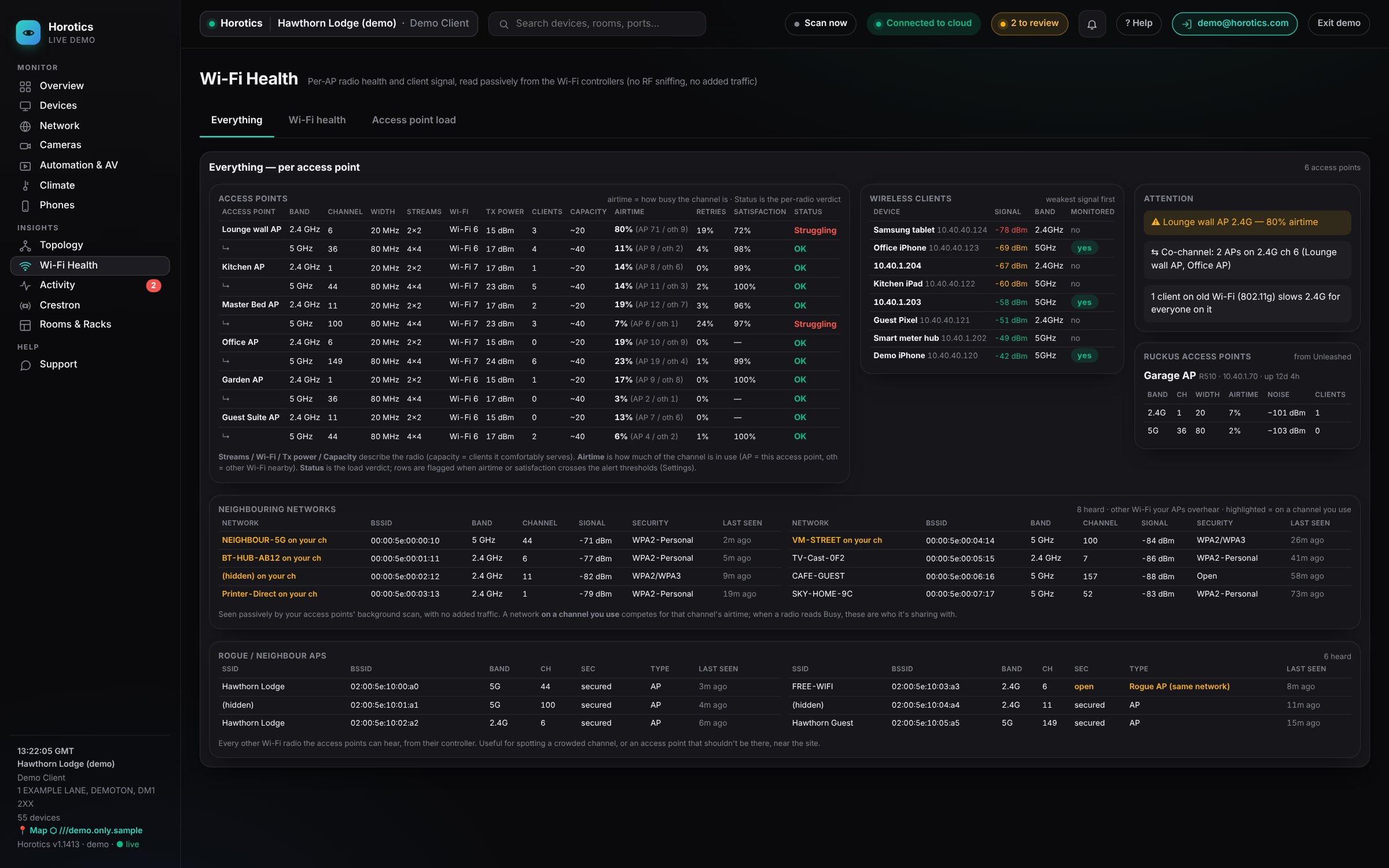
This page tells you whether your Wi-Fi is genuinely healthy, not just switched on. It's read passively from your Wi-Fi controllers (such as UniFi or Ruckus): there's no radio sniffing and no extra traffic on your network.

Three tabs along the top. Everything shows it all on one page. Wi-Fi health is a quicker read of how each radio is coping. Access point load shows each access point as a card with a "how busy" bar for each radio.
The Everything tab
Access points
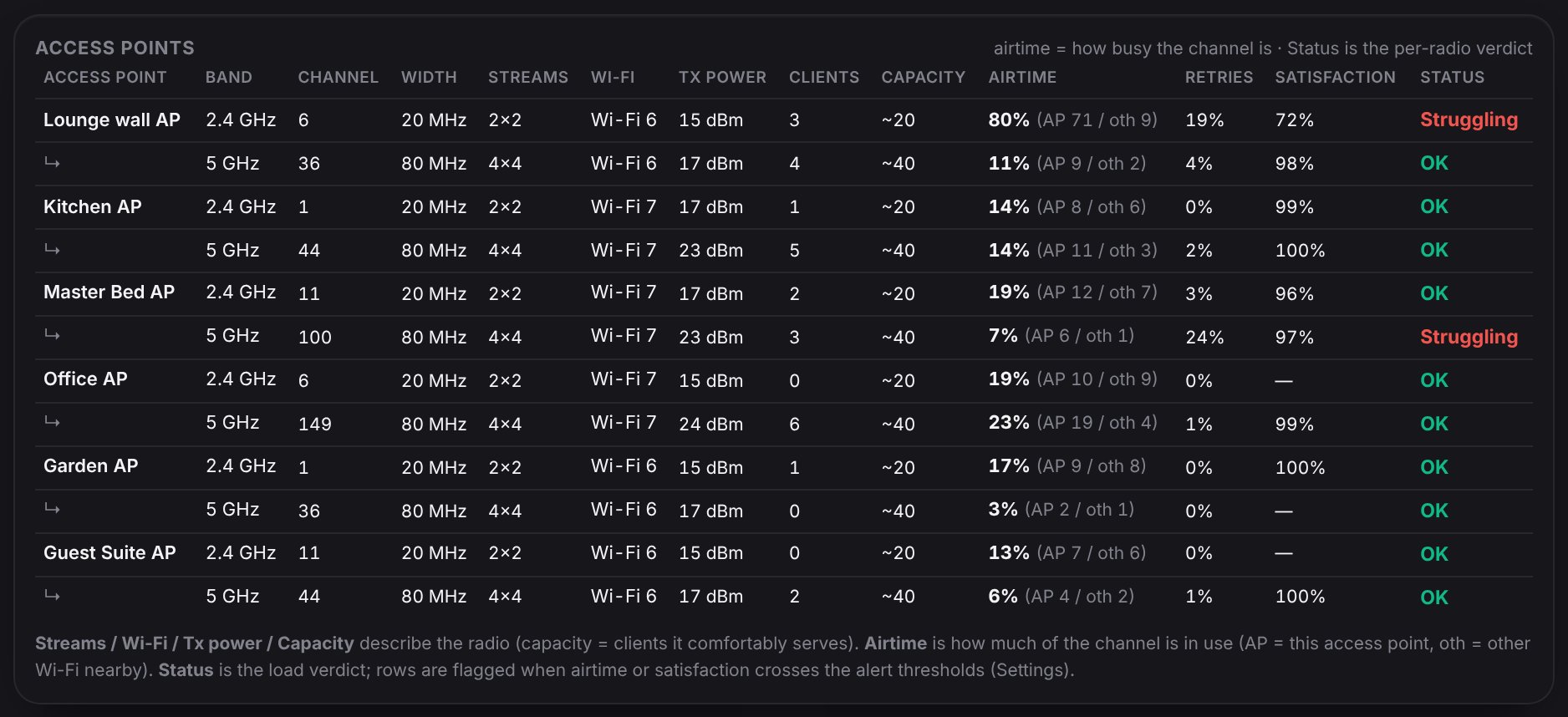
One line per radio. Most access points have two, 2.4 GHz and 5 GHz; the second is shown with a ↳ under the access point's name.
- Band
- 2.4 GHz reaches further but is slower and more crowded; 5 GHz is faster but shorter range. Devices pick whichever suits them.
- Channel and width
- The exact slice of airwaves the radio is using. Wider (80 MHz) is faster; narrower (20 MHz) is more robust. Mostly for installers.
- Streams, Wi-Fi and Tx power
- What the radio is capable of: how many antennas it uses at once (2×2, 4×4), its Wi-Fi generation (Wi-Fi 6, Wi-Fi 7) and how loudly it transmits.
- Clients and capacity
- How many devices are on it now, and roughly how many it serves comfortably (about 20 on 2.4 GHz, 40 on 5 GHz).
- Airtime
- How busy the channel is, split into AP (this access point's own traffic) and oth (other Wi-Fi nearby using the same channel). Like a road: a strong signal on a jammed road still feels slow. Under about 40% is comfortable.
- Retries
- How often the radio has to send something again because it didn't get through. A few percent is normal; above about 15% means a noisy or struggling channel.
- Satisfaction
- The access point's own score for how well its clients are being served, out of 100. A dash means no clients to score.
- Status
- The verdict for that radio: OK, Busy (airtime getting high) or Struggling (airtime very high or lots of retries). The thresholds are set in Settings.
Wireless clients
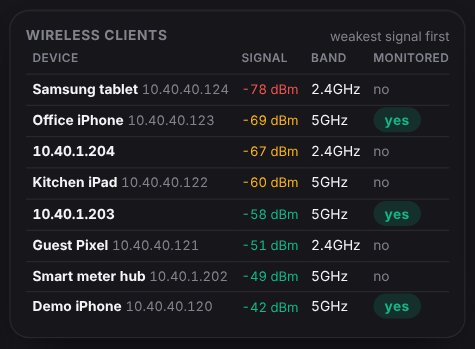
Every device on Wi-Fi, weakest signal first so problems are at the top, with its band and whether it's Monitored. Signal is in dBm: closer to zero is stronger. About −60 or better is good; below the weak threshold (−75 by default) is marginal. Weak signal is only alerted for monitored devices, so phones walking out of range don't set off alarms.
Attention
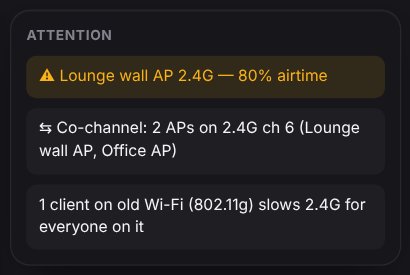
Plain-English warnings: a radio that's too busy, two of your access points on the same channel (co-channel, so they slow each other down), or an old Wi-Fi device that slows the channel for everyone on it.
Ruckus access points
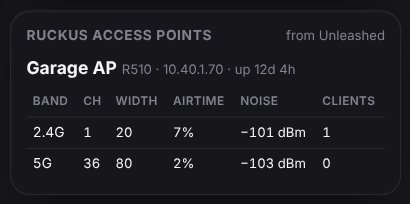
Where the site has Ruckus access points, they're shown here, read from the Ruckus Unleashed controller: each radio's channel, width, airtime, background noise and clients.
Neighbouring networks
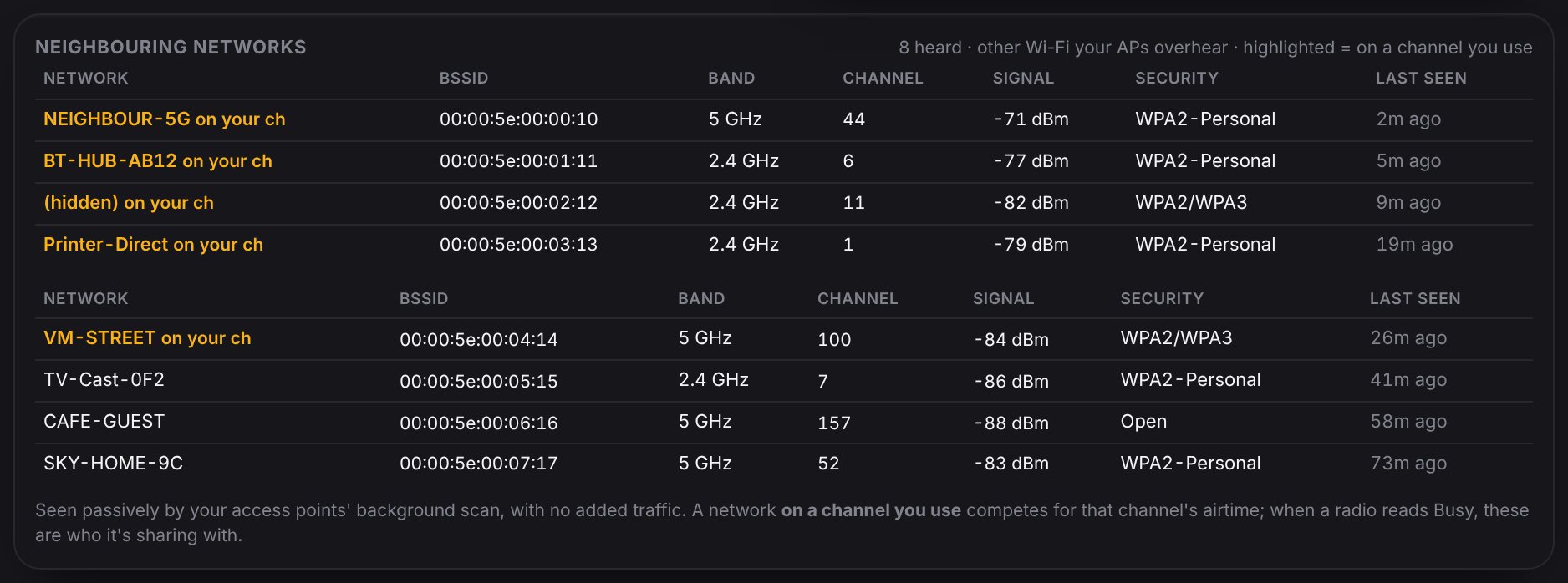
Other Wi-Fi networks your access points can hear, such as next door's, with their band, channel, signal and security. Ones marked on your ch are on a channel one of your radios uses, so they compete for its airtime. When a radio reads Busy, these are who it's sharing with.
Rogue / neighbour APs
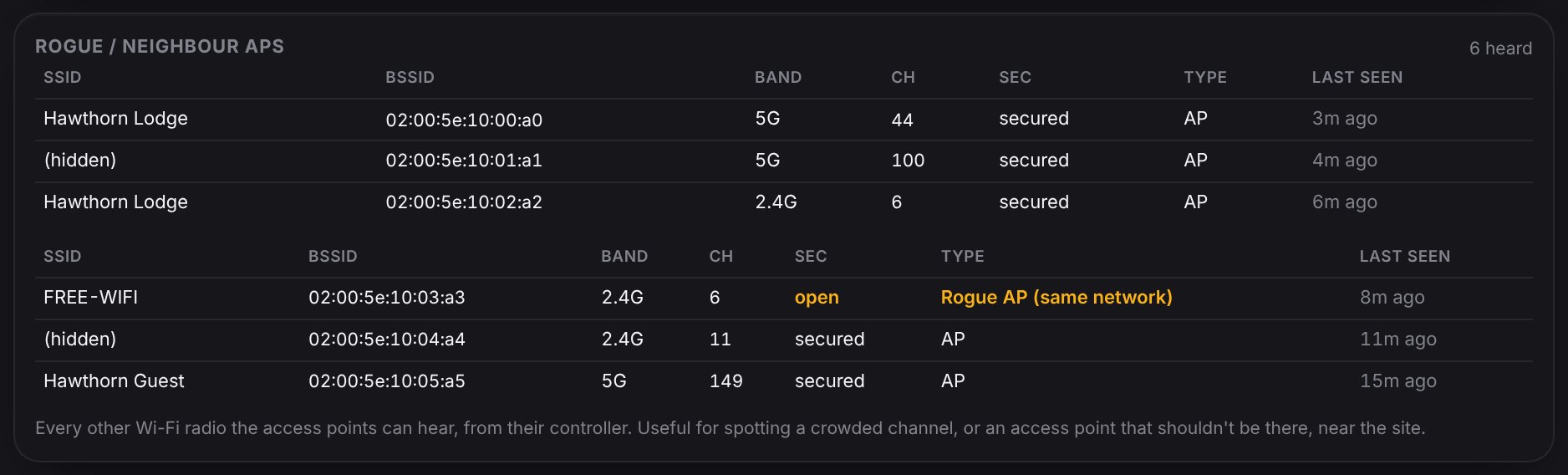
Every other Wi-Fi radio the controller has heard near the site. Most are harmless neighbours. Watch for anything marked open (no password) or Rogue AP (same network), an access point plugged into your network that isn't one of yours. Mention those to your installer.
The Wi-Fi health tab
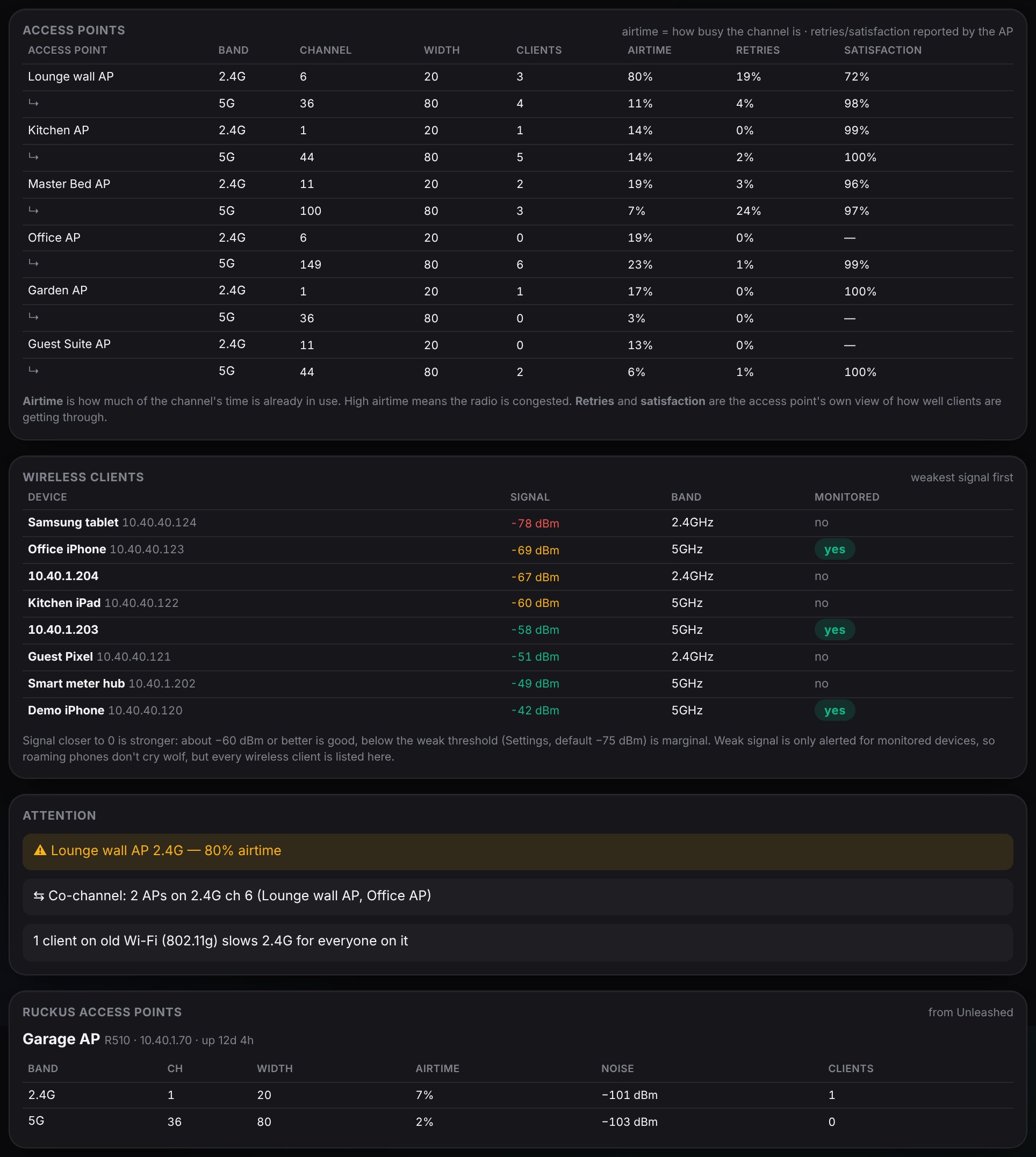
A quicker version of the same information: each radio's channel, clients, airtime, retries and satisfaction, the wireless clients with a reminder of what good signal looks like, Attention, and the Rogue / neighbour APs list.
The Access point load tab
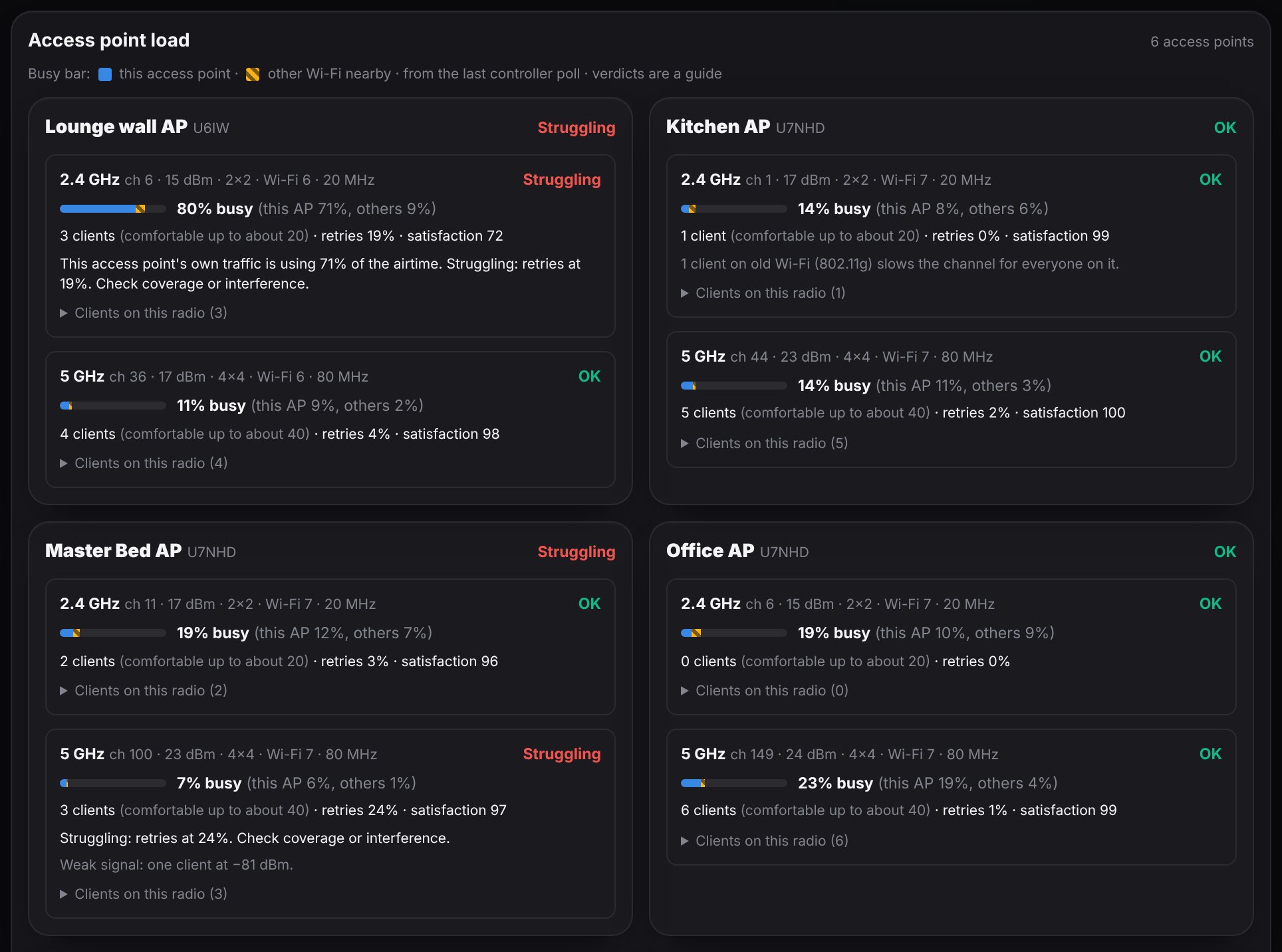
One card per access point, with its verdict in the corner, and a panel for each radio.
- Busy bar
- How much of the channel is in use. Blue is this access point's own traffic; striped orange is other Wi-Fi nearby. A bar that's mostly orange means the neighbours are the problem, not you.
- Clients, retries and satisfaction
- As on the Everything tab, with how many clients this radio serves comfortably.
- Notes
- When something's wrong it says why in plain English, such as "retries at 19%, check coverage or interference", "1 client on old Wi-Fi slows the channel" or "Weak signal: one client at −81 dBm".
- Clients on this radio
- Click to list the devices connected to that radio.
Why Wi-Fi feels slow with full bars
Full bars means a strong signal. But if the channel is busy, from lots of devices or a neighbour on the same channel, everyone waits their turn. That's why Horotics shows airtime, retries and satisfaction, not just bars.
If a radio shows Busy or Struggling, or there's an Attention warning, tell your installer which access point. Often the fix is a quick channel change, with no new hardware.