Rooms & Racks
See this on a live example →Rooms & Racks is about where your equipment physically is — organising it into rooms, and (if it lives in an equipment rack) which slot each unit sits in. The left menu and top strip are the same as everywhere (see the Overview page); you're on Rooms & Racks under Insights.
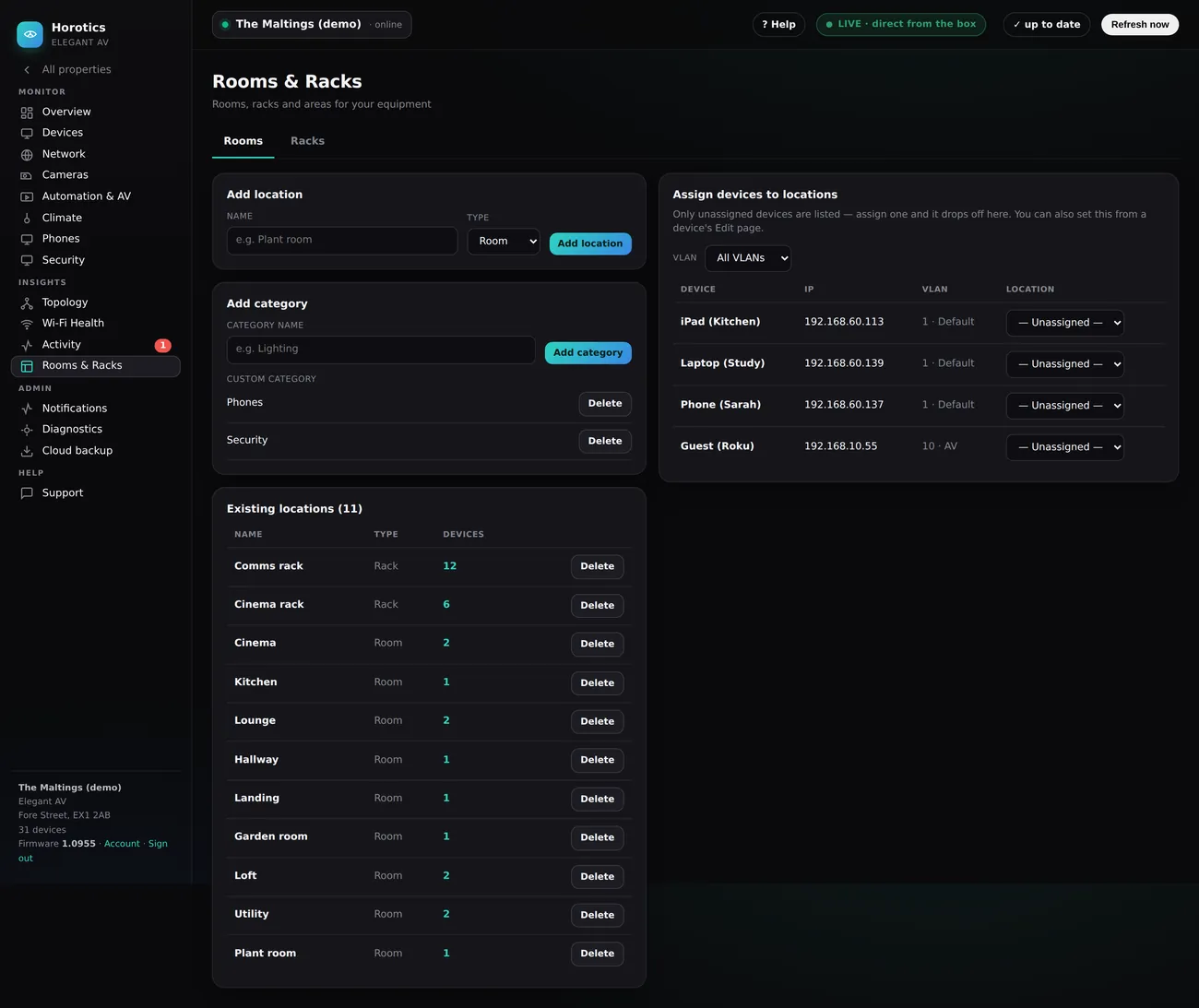
The two tabs
At the top are Rooms and Racks. Click either to switch; Rooms is shown when you open the page.
The Rooms tab
- Add location — type a name (e.g. “Plant room”), pick a Type (Room or Rack), and press Add location to create it.
- Add category — make your own grouping (e.g. “Lighting”) with Add category; any you’ve added show below with a Delete button.
- Assign devices to locations — a list of any devices that don’t yet have a location. Pick a room from the dropdown next to one and it’s assigned (and drops off the list). You can filter it by VLAN. The same can be done from a device’s own Edit page.
- Existing locations — every room and rack you have, each showing its Type and how many devices are in it, with a Delete to remove an empty one.
A device that moves around — like a phone or a roaming tablet — can be pinned to the whole property so it stops drifting between rooms.
The Racks tab
If your kit lives in an equipment rack, the Racks tab shows a rack elevation — a tall diagram of the rack with each unit in its real slot (its “U”), online in green and offline in red, the same as looking at the actual rack. You can drag a device straight onto the slot it occupies.